SELF-SERVICE HELP · EMAIL SUPPORT
Protector Support Guides
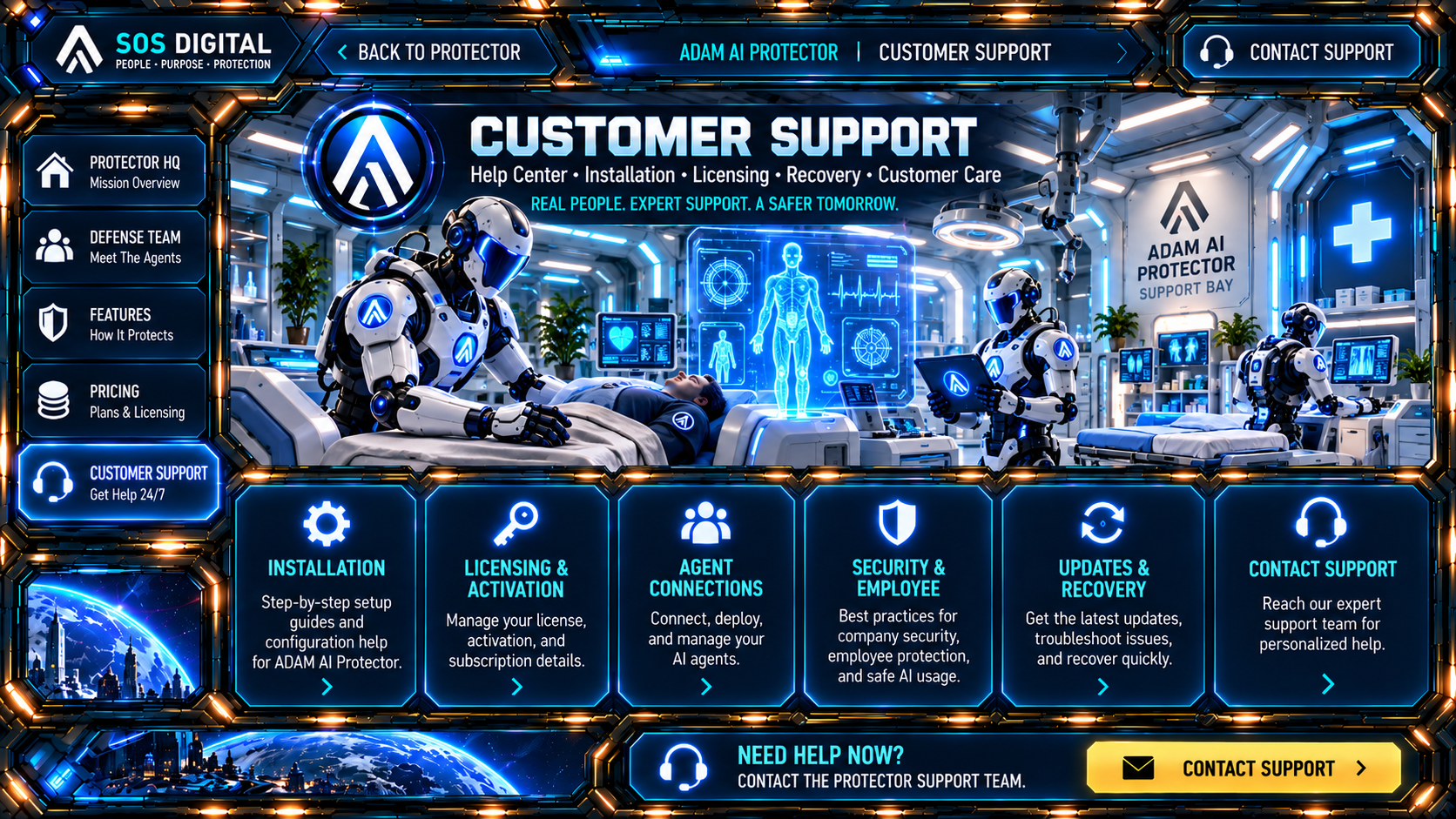
Choose a support tile above or use the guides below. If the steps do not solve the problem, use the support form. Routine requests are handled through SOS support; billing disputes, refunds, legal matters, data-loss reports, major outages, and unresolved security incidents are escalated for human review.
Installation
- Download the paid company ZIP only from the verified purchase page.
- Extract the ZIP to a normal local Windows folder.
- Open README-FIRST.txt, then run ADAM-First-Run.exe.
- Enter the activation code shown after verified payment.
- After activation, open Protector and create the named Developer account.
Contact Installation Support →Licensing & Activation
- Use the activation code from the verified purchase record.
- Do not copy an already-bound license to another company or server.
- For replacement hardware, preserve the data folder/backups and request an authorized migration.
- If payment succeeded but activation is locked, contact support with purchaser email plus order/customer ID only.
Contact Licensing & Activation Support →Agent Connections
- On first paid activation, Protector automatically reserves the first 10 customer-linked badges for its built-in Protector roles.
- Customer/company agents begin after those 10 built-in identities and are registered with their real workflow/agent ID plus task/job description.
- Assign the approved scope and bind the connector public key.
- A short-lived run credential is issued when an enrolled role or task actually starts or renews.
- Test one allowed action and one denied action before production use.
Contact Agent Connections Support →Security & Employee
- Developer manages personnel, roles, enrollment, evidence, and recovery.
- Security users review cases and permitted containment requests.
- Employees receive only delegated registration access.
- Never share passwords, private keys, recovery secrets, or card data with support.
Contact Security & Employee Support →Updates & Recovery
- Protector verifies signed update packages before staging.
- Use the Update Manager and keep independent business backups.
- If an update fails, use Roll Back Last Update and preserve logs.
- For outages or security incidents, stop additional changes and contact support with a sanitized diagnostic bundle.
Contact Updates & Recovery Support →